Best Monitor for Kids: Eye-Friendly Picks for Homework
Four 24-inch monitors for kids' homework and remote classes, with adjustable stands, flicker-free screens and the right ports for PCs, Chromebooks and consoles.
In this article
The best monitor for kids, for most families, is the BenQ GW2490T: a 24-inch 1080p IPS screen with flicker-free backlighting and a stand that moves up and down by about 4.3 inches, which is exactly what you need when the chair and the kid keep changing. If homework happens on a school Chromebook or a USB-C laptop, the BenQ GW2486TC does everything over one cable.
- For most families BenQ GW2490T 23,8" IPS Full HD 100 Hz Mid-range See on Amazon
- For USB-C laptops and Chromebooks BenQ GW2486TC 23,8" IPS Full HD USB-C 65 W Premium See on Amazon
- For homework plus gaming ASUS VY249HGR Eye Care 23,8" IPS 120 Hz Budget pick See on Amazon
- For the tightest budget Dell 24 Monitor SE2425HM 23.8" IPS 100 Hz Budget pick See on Amazon
How we picked
There's no such thing as a special "kids' monitor." There are 24-inch monitors that suit a 9-year-old today and a 15-year-old later, and that's what we went looking for. We skipped 27-inch screens, which crowd the shallow desks most kids' rooms have, and 4K panels, which at this size force you to scale everything up and add nothing to a book report.
Our criteria, roughly in order of weight: a height-adjustable stand, an IPS panel with wide viewing angles (homework help means two heads in front of one screen), independent flicker and blue-light certifications, ports that match the devices schools actually hand out, and speakers or a mic for remote classes. We cross-checked manufacturer spec sheets with measurements from RTINGS and Tom's Hardware and with verified owner reviews written months after purchase, where the problems first impressions miss tend to show up: wobbly stands, awkward buttons, thin speakers. We don't physically test products; if a spec isn't published or measured by a named source, it doesn't go in the article.
One honest caveat. No monitor "protects your child's eyes." TÜV certifications cut backlight flicker and blue-light peaks, but distance, room lighting and breaks matter more. The American Academy of Ophthalmology's 20-20-20 habit (every 20 minutes, look at something 20 feet away for 20 seconds) will do more than any spec sheet. We said the same about headphones for studying: the gear helps, the routine decides.
The four eye care monitors we recommend
All four are 23.8-inch, 1080p screens. What changes is the stand, the ports and the audio, and that's where the decision really lives.
 Illustrative image
- Height-adjustable stand (110 mm / 4.3 in), swivel and pivot
- TÜV Eye Comfort certified, flicker-free, automatic brightness
- 2 HDMI + DisplayPort, 2x2 W speakers
| Screen size | 23.8" |
|---|---|
| Resolution | 1920x1080 |
| Refresh rate | 100 Hz |
| Ports | 2 HDMI, DisplayPort |
| Height | Yes, 4.3 in |
| Technology | TÜV Eye Comfort, flicker-free |
The GW2490T is the one that works for nearly every household. The stand raises the panel about 4.3 inches, swivels, and even rotates to portrait, which is handy for reading a whole PDF without scrolling. BenQ backs it with TÜV Eye Comfort certification, an ePaper mode that turns the screen black-and-white for long reading, and a sensor that adjusts brightness to the room. Two HDMI inputs plus DisplayPort mean a PC and a game console can stay plugged in at the same time, and there's a pair of small speakers.
- Height, swivel and pivot adjustments, rare in the midrange
- TÜV Eye Comfort certification and automatic brightness
- Two HDMI ports plus DisplayPort: no cable swapping
- No USB-C, so a Chromebook needs an adapter
- The speakers are fine for a Zoom class, not for movie night
- Some long-term owner reviews call the button menu fiddly
Who it's for: families with a desktop or an HDMI laptop and a kid who'll use that desk for years.
 Illustrative image
- USB-C with 65 W charging, USB-A hub
- Height-adjustable stand (130 mm / 5.1 in), pivot
- Noise-canceling mic, 2x2 W speakers
| Screen size | 23.8" |
|---|---|
| Resolution | 1920x1080 |
| Refresh rate | 100 Hz |
| Ports | USB-C 65 W, HDMI, DisplayPort |
| Height | Yes, 5.1 in |
| Technology | Flicker-free, Low Blue Light Plus |
Plenty of middle and high schools run on Chromebooks and laptops. The GW2486TC is built around them: one USB-C cable carries video, audio and up to 65 W of charging, and two USB-A ports on the monitor take a keyboard and mouse. The stand has the most travel in this group, about 5.1 inches, and there's a noise-canceling microphone for remote classes and video calls. It comes in white, which in a teen's room is not a small detail.
- USB-C with 65 W charging: plug in the laptop and you're done
- Built-in noise-canceling mic
- The widest height range of the four
- The priciest pick here, firmly in the upper tier
- 65 W won't keep up with power-hungry gaming laptops
- Just one HDMI input, so a console and desktop means swapping cables
Who it's for: the high schooler with a USB-C laptop or school Chromebook who wants a tidy desk and calls without a headset.
 Illustrative image
- 120 Hz with Adaptive Sync
- Antibacterial treatment on bezel and buttons
- TÜV low blue light and flicker-free certified
| Screen size | 23.8" |
|---|---|
| Resolution | 1920x1080 |
| Refresh rate | 120 Hz |
| Ports | HDMI, VGA |
| Height | No, tilt only |
| Technology | TÜV Low Blue Light, flicker-free |
The ASUS VY249HGR belongs to the brand's Eye Care line and has one unusual feature: an antibacterial treatment on the bezel and buttons, which on a screen poked by small fingers isn't a gimmick. It runs at up to 120 Hz, so games on a console or PC look smoother than on the others. The trade-off is a tilt-only stand and no speakers; audio goes out through the headphone jack.
- 120 Hz, the smoothest of the group for gaming
- Antibacterial treatment on the bezel and buttons
- TÜV low blue light and flicker-free certifications
- Tilt only: raising it takes a VESA arm or a riser
- No speakers
- Inputs limited to HDMI and VGA
Who it's for: the teen who does homework and gaming at the same desk, with headphones on, and is already adult height.
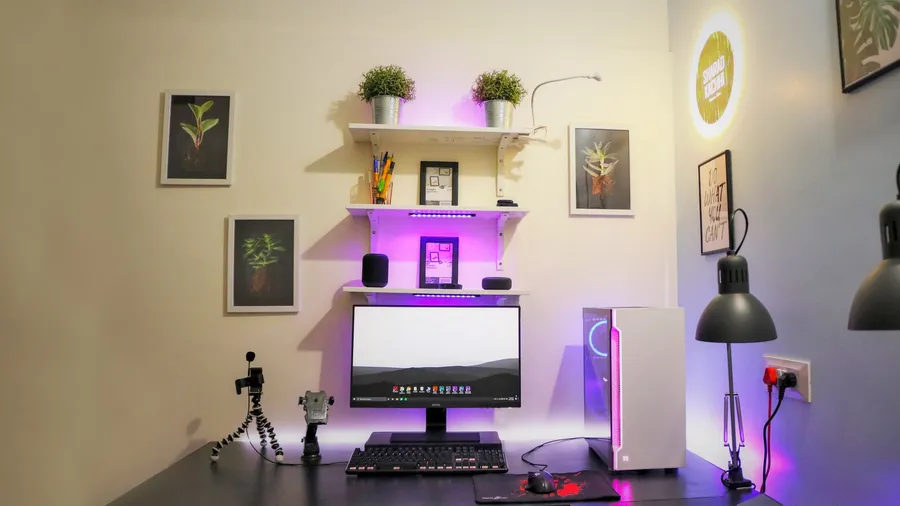 Illustrative image
- IPS panel at 100 Hz
- ComfortView low blue light mode, anti-glare
- HDMI and VGA inputs
| Screen size | 23.8" |
|---|---|
| Resolution | 1920x1080 |
| Refresh rate | 100 Hz |
| Ports | HDMI, VGA |
| Height | No, tilt only |
| Technology | ComfortView low blue light |
The Dell SE2425HM is the budget pick that doesn't cut the one corner that matters, the IPS panel. It runs at 100 Hz, has an anti-glare finish and Dell's ComfortView low blue light mode, and takes HDMI or VGA. Everything else is bare-bones: a tilt-only stand and no speakers.
- Budget tier with an IPS panel and 100 Hz
- Anti-glare coating that handles a sunny window well
- Light and easy to move between rooms
- No speakers and no USB ports
- Tilt only: a younger kid will need a riser under the base
- Some owners mention a stand that wobbles on a shaky desk
Who it's for: a second homework screen, or a family on a tight budget with a kid who already sits at adult height.
| BenQ GW2490T 23,8" IPS Full HD 100 Hz | BenQ GW2486TC 23,8" IPS Full HD USB-C 65 W | ASUS VY249HGR Eye Care 23,8" IPS 120 Hz | Dell 24 Monitor SE2425HM 23.8" IPS 100 Hz | |
|---|---|---|---|---|
| Best for | For most families | For USB-C laptops and Chromebooks | For homework plus gaming | For the tightest budget |
| Screen size | 23.8" | 23.8" | 23.8" | 23.8" |
| Resolution | 1920x1080 | 1920x1080 | 1920x1080 | 1920x1080 |
| Refresh rate | 100 Hz | 100 Hz | 120 Hz | 100 Hz |
| Ports | 2 HDMI, DisplayPort | USB-C 65 W, HDMI, DisplayPort | HDMI, VGA | HDMI, VGA |
| Height | Yes, 4.3 in | Yes, 5.1 in | No, tilt only | No, tilt only |
| Technology | TÜV Eye Comfort, flicker-free | Flicker-free, Low Blue Light Plus | TÜV Low Blue Light, flicker-free | ComfortView low blue light |
| Price band | Mid-range | Premium | Budget pick | Budget pick |
| See on Amazon | See on Amazon | See on Amazon | See on Amazon |
Height and distance matter more than screen size
The top edge of the screen should sit at or just below eye level, with the screen about an arm's length away. OSHA's computer workstation guidance puts the viewing distance at 20 to 40 inches for adults; for a kid, start at the short end of that range.
That's why we weigh the stand so heavily. A third grader and a seventh grader don't sit with their eyes at the same height, and the gap is obvious the moment they swap chairs. With a tilt-only monitor, the fix is a stack of books under the base that eventually slides sideways. With 4 to 5 inches of travel, the screen keeps up for years. And if a parent who works from home shares the desk, adjusting it becomes a two-second move instead of an argument.
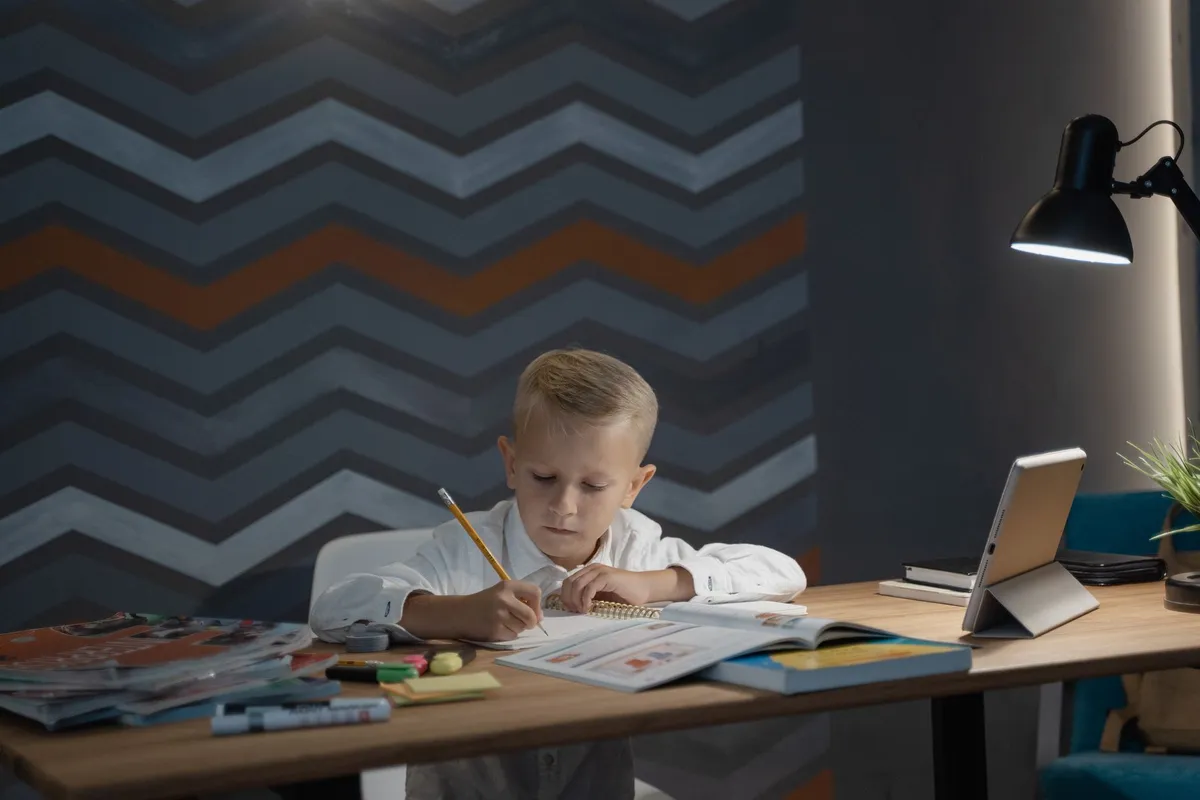
For the two tilt-only models, a VESA 100x100 monitor arm is a cheap fix that also frees up desk space. All four monitors have the mount.
Blue light, flicker and certifications: what to read on the box
Monitor boxes are covered in logos. Only a few carry a meaning you can check:
- Flicker-free: the backlight isn't dimmed with rapid pulses at low brightness. It's the most useful spec for anyone who spends hours in front of a dimmed screen.
- TÜV Low Blue Light (hardware): the panel itself emits less peak blue light without turning everything yellow. "Software" versions are just a color filter, like night mode on a phone.
- TÜV Eye Comfort: bundles several requirements, including adaptive brightness and glare handling. In our group, the BenQ GW2490T has it.
Our take: automatic brightness is the most underrated feature on this list. Kids leave the screen at full blast in a dark room at night, and that contrast is more tiring than blue light. Two of our four picks adjust it on their own; on the others, turn brightness down once and leave it there.
Certifications don't replace an eye exam. If a child squints or leans in close to the screen, the cause is almost always somewhere else.
USB-C, HDMI or a game console: matching the ports
Before choosing, look at what's getting plugged in. A recent laptop or Chromebook with USB-C DisplayPort Alt Mode (look for a small D or a lightning bolt next to the port) connects to the GW2486TC with one cable and charges at the same time. A desktop, an HDMI laptop or a console works with all four. If you want a PC and a console connected at once with no cable juggling, you need two video inputs: the GW2490T has three.
A common mistake is buying a USB-C monitor for a laptop whose USB-C port only charges or moves files. Plenty of budget laptops work that way. Check the laptop's spec sheet, not the shape of the port.
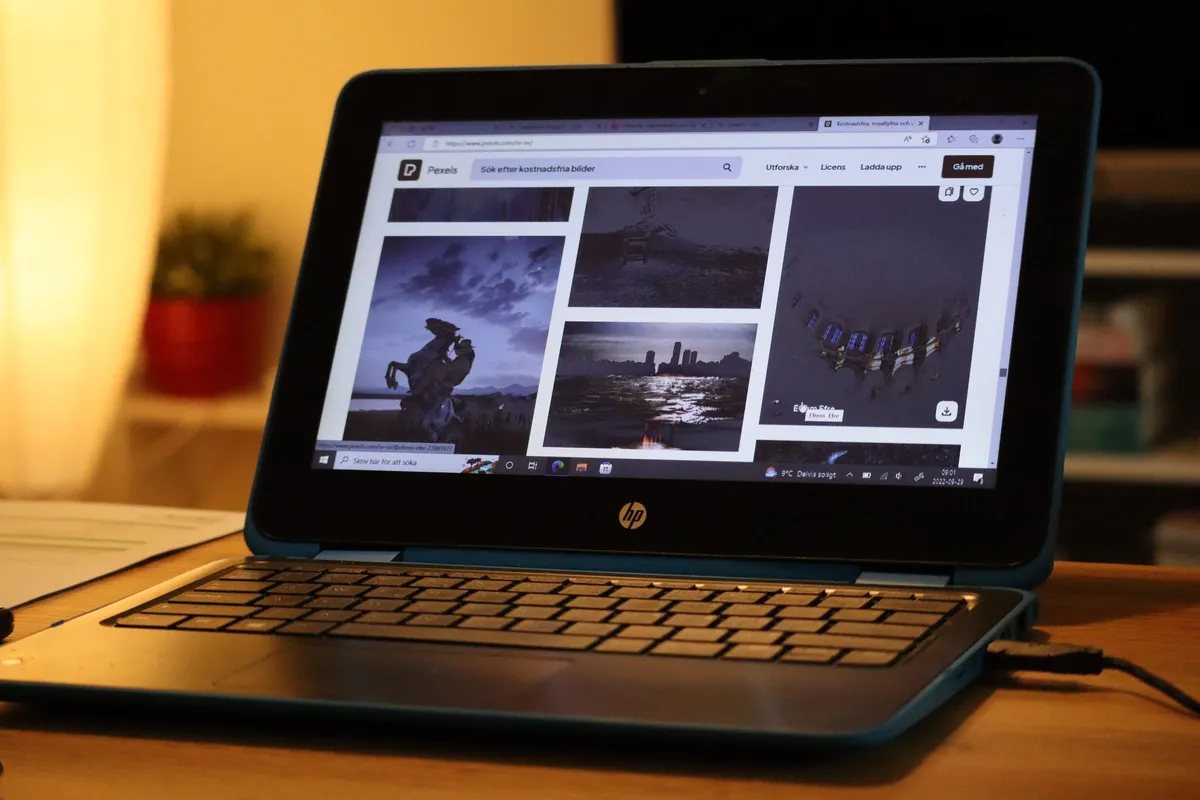
Desk space counts as much as ports. A monitor, keyboard and lamp fill a small desk fast; a compact stand or a wall arm leaves room for notebooks, and for the school bag to live by the chair instead of on the desktop.
When to buy, and when to skip it
Monitors tend to show up in the big sales events, and we cover how to approach them on our Prime Big Deal Days page. Skip the monitor altogether for a kid under six or seven who only uses a tablet; the jump isn't needed yet. And don't put a 27-inch screen on a shallow desk: the kid ends up too close, moving their head instead of their eyes.
Our verdict
For most families: BenQ GW2490T. Adjustable stand, Eye Comfort certification and three video inputs, so it grows with your kid.
For a USB-C laptop or school Chromebook: BenQ GW2486TC. One cable for everything, a mic for remote classes and the most height range.
For homework plus gaming on a budget: ASUS VY249HGR. 120 Hz and antibacterial surfaces; plan on a riser or arm and a pair of headphones. If money is tighter still, the Dell SE2425HM covers the basics.
See it on Amazon.com Paid link
Frequently asked questions
What is the best monitor for kids?
Should a kid get a 24-inch or 27-inch monitor?
Do blue light monitors protect kids' eyes?
Can I connect a school Chromebook to a monitor?
Is a gaming monitor OK for homework?
As an Amazon Associate I earn from qualifying purchases.

James Whitaker
Editorial byline of the English edition for gadgets, audio and smart home. Angle: distrust superlatives and explain specs in plain words without losing sight of the price.
Guide produced by the editorial team with AI tools from verified sources and published under the editorial responsibility of Andrea Bertolotti. How we work · Report an error
You may also like

AI smart glasses: which to buy and what they actually do
Ray-Ban Meta Gen 2 and Oakley Meta HSTN compared: what the AI really does, how long the battery lasts and when smart glasses make sense.

Earbuds or over-ear headphones: which ANC pair to buy for studying
Earbuds or over-ear headphones with noise cancelling? Isolation, battery life and comfort compared across four models sold in the U.S., with a pick for each profile.

Noise cancelling headphones for studying: three picks that work
A practical guide to noise cancelling headphones for study and work: how much silence you really get, comfort, battery life and three models we recommend.
The best guides, once a week
No spam: only products worth knowing about and deals that make sense.